# Google Cloud Platform (GCP) CLI
## How do I install Google Cloud Platform (GCP) CLI?
| | |
| --- | --- |
| Reading time: | 5 min |
| Last updated: | 4 Aug 2026 |
| | |
| --- | --- |
| Author: | Jason Andrews , Arm
[GitHub](https://github.com/jasonrandrews)
[LinkedIn](https://linkedin.com/in/jason-andrews-7b05a8) |
| Official docs: | [View](https://cloud.google.com/sdk/docs/install-sdk#deb) |
This guide shows you how to install and use the tool with the most common configuration. For advanced options and complete reference information, see the official documentation. Some install guides also include optional next steps to help you explore related workflows or integrations.
The Google Cloud CLI, `gcloud`, allows you to run commands in your Google Cloud account.
`gcloud` is available for Windows, macOS, Linux and supports the Arm architecture.
## What should I consider before installing gcloud?
Use the documentation link to find alternative installation options.
This article provides a quick solution to install `gcloud` for Ubuntu on Arm.
Confirm you are using an Arm machine by running:
```
uname -m
```
The output should be:
```
__output__ aarch64
```
If you see a different result, you are not using an Arm computer running 64-bit Linux.
## How do I download and install gcloud for Ubuntu on Arm?
### How do I install gcloud using the package manager?
The easiest way to install `gcloud` for Ubuntu on Arm is to use the package manager.
Download and install the required software packages.
```
sudo apt-get install -y curl apt-transport-https ca-certificates gnupg
```
Install `gcloud` from the Google repository.
```
echo "deb https://packages.cloud.google.com/apt cloud-sdk main" | sudo tee -a /etc/apt/sources.list.d/google-cloud-sdk.list
curl https://packages.cloud.google.com/apt/doc/apt-key.gpg | sudo apt-key add -
sudo apt-get update && sudo apt-get install google-cloud-cli -y
```
```
echo "deb [https://packages.cloud.google.com/apt] cloud-sdk main" | sudo tee -a /etc/apt/sources.list.d/google-cloud-sdk.list
curl [https://packages.cloud.google.com/apt/doc/apt-key.gpg] | sudo apt-key add -
sudo apt-get update && sudo apt-get install google-cloud-cli -y
```
### How do I install gcloud using the archive file?
If you cannot use the package manager or you get a Python version error such as the one below you can use the archive file.
```
__output__ The following packages have unmet dependencies:
__output__ google-cloud-cli : Depends: python3 (< 3.12) but 3.12.3-0ubuntu2 is to be installed
```
Download the archive file and extract the contents:
```
wget https://dl.google.com/dl/cloudsdk/channels/rapid/downloads/google-cloud-cli-linux-arm.tar.gz
sudo tar -xzf google-cloud-cli-linux-arm.tar.gz -C /opt
```
```
wget [https://dl.google.com/dl/cloudsdk/channels/rapid/downloads/google-cloud-cli-linux-arm.tar.gz]
sudo tar -xzf google-cloud-cli-linux-arm.tar.gz -C /opt
```
Run the installer:
```
cd /opt/google-cloud-sdk
sudo ./install.sh -q
```
> Note: You can change the installation directory from `/opt` to a location of your choice.
Add the installation directory to your search path. The installer will print the path to a script you can source to add `gcloud` to your search path.
```
__output__ ==> Source [/opt/google-cloud-sdk/completion.bash.inc] in your profile to enable shell command completion for gcloud.
__output__ ==> Source [/opt/google-cloud-sdk/path.bash.inc] in your profile to add the Google Cloud SDK command line tools to your $PATH.
__output__ For more information on how to get started, please visit:
__output__ https://cloud.google.com/sdk/docs/quickstarts
```
Source the file to include `gcloud` in your search path:
```
source /opt/google-cloud-sdk/path.bash.inc
```
Alternatively, you can add the `bin` directory to your path by adding the line below to your `$HOME/.bashrc` file.
```
export PATH="/opt/google-cloud-sdk/bin:$PATH"
```
## How do I test gcloud?
Confirm the executable is available and print the version:
```
gcloud -v
```
The output is similar to:
```
__output__ Google Cloud SDK 579.0.0
__output__ bq 2.1.36
__output__ bundled-python3-unix 3.14.6
__output__ core 2026.07.31
__output__ gcloud-crc32c 1.0.0
__output__ gsutil 5.37
```
## How do I acquire user access credentials for Google Cloud?
You can use `gcloud` to obtain user access credentials for Google Cloud using a web flow. You will put the credentials in a well-known location for Application Default Credentials (`ADC`).
Run the following command to obtain user access credentials:
```
gcloud auth application-default login
```
The command outputs a uniquely generated URL and a prompt to enter an authorization code, as shown below:

Open the URL in your browser and copy the unique authentication code.
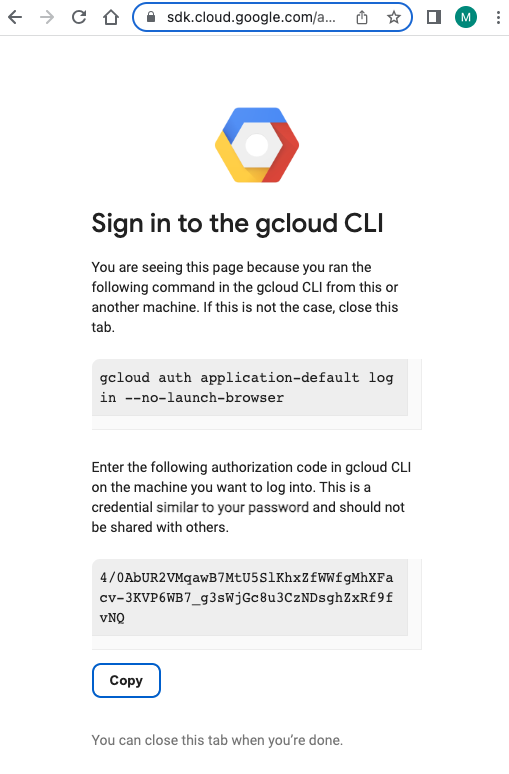
Now, paste the authentication code as shown below. The following output indicates a successful log in:
```
__output__ Enter authorization code: 4/0AfgeXvsdW0jpvy3dBg5SH03DryspZyV5nz0j3lIDg4LwjL1AgikjjJYHgWlcap3Xtb0ioA
__output__
__output__ Credentials saved to file: [/home/ubuntu/.config/gcloud/application_default_credentials.json]
__output__
__output__ These credentials will be used by any library that requests Application Default Credentials (ADC).
```
After a successful log in, you will be able to use the `Google Cloud CLI` and automation tools like [Terraform](https://learn.arm.com/install-guides/terraform/) from the terminal.